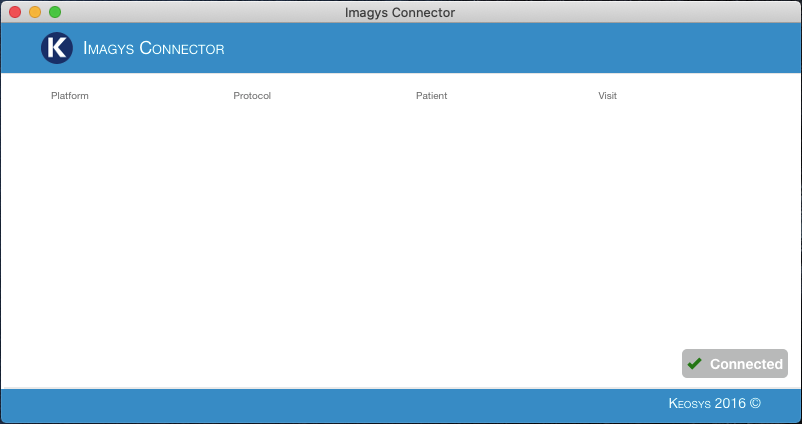
During the login process, if Imagys Connector is not detected, you will be offered the possibility to download and install the program.
Please check the prerequisites document prior to installation: Minimum System Requirements for Imagys Connector
You need administrative privileges on the computer to install the software the first time. Using the software, and the automated update process, do not require elevated privileges.
To download Imagys Connector, log in to the Imagys web platform with your credentials.
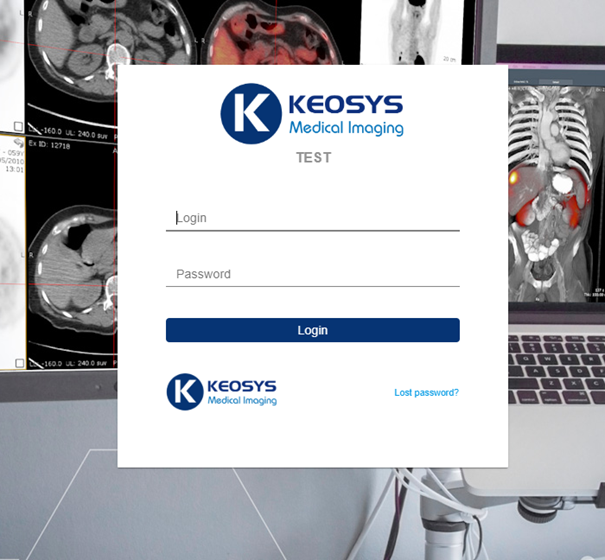
If Imagys Connector is not installed on your computer, the following notification window will appear after a few seconds. Click on "Download".

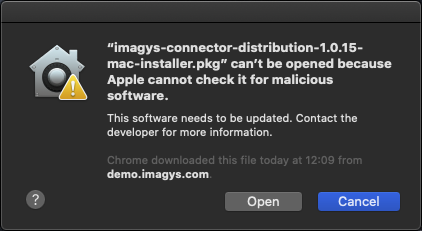
Starting recent MacOS versions, default security settings on the computer might prevent Imagys Connector from being installed.
The error message indicates that "imagys-connector-distribution-1.0.15-max-installer.pkg can't be opened because Apple cannot check it for malicious software."
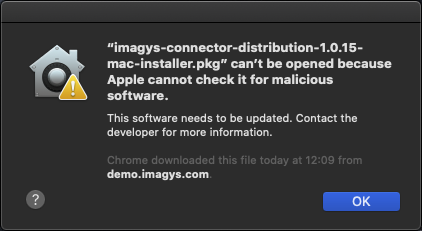
Once the error message appeared, access the system preferences
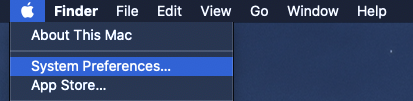
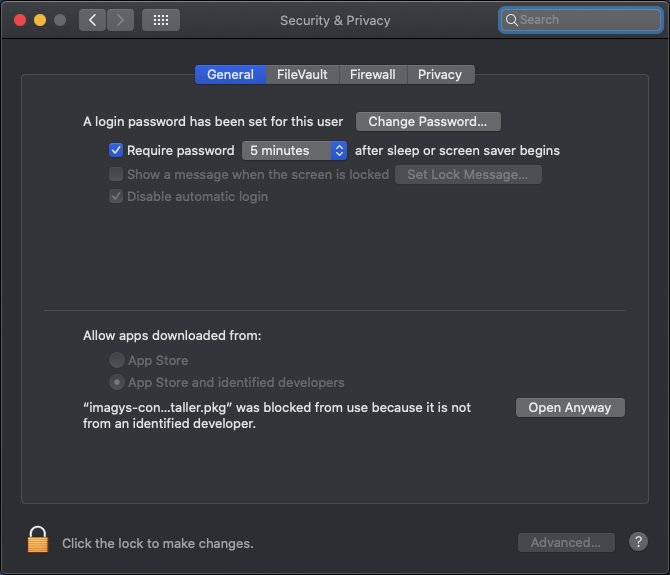
Go into "Security & Privacy" and click on "Open Anyway" at the bottom
Click on "Open" to start the installation process
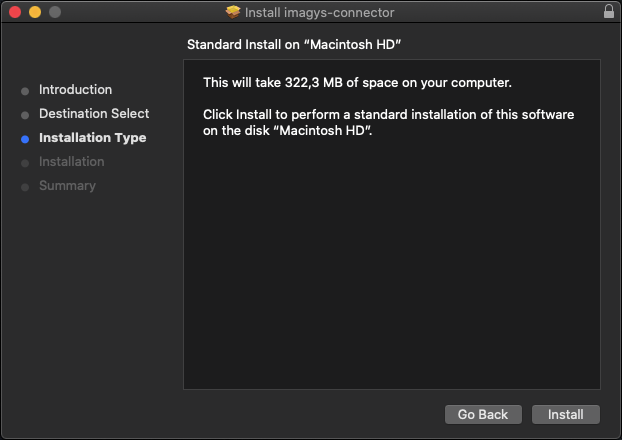
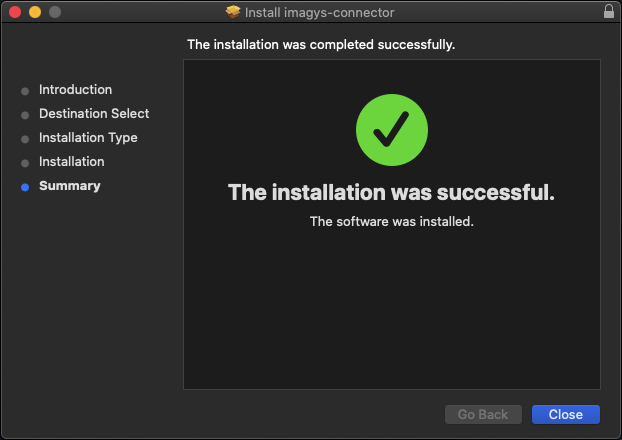
Click on "Install" and follow the instructions until the installation process is over
Go back to your Web Browser and log onto Imagys. If you are using Google Chrome, click on "Open imagys-connector" to allow the application to start
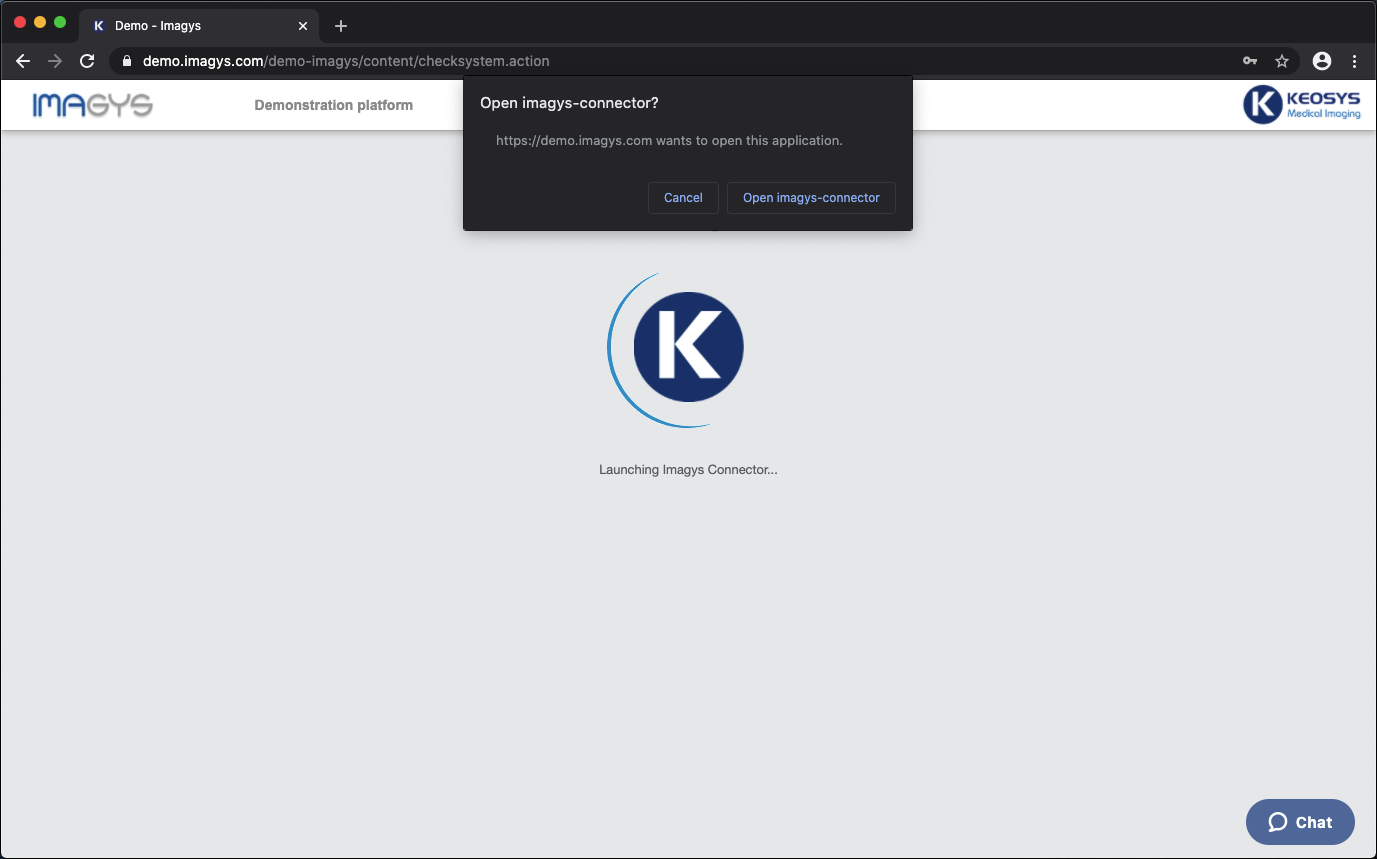
a step-by-step guide to have Google Chrome always allow Imagys Connector to be started is available here: How to configure Google Chrome to always allow Imagys Connector to start on Apple computers
During the login process, Imagys Connector will be started, and will download relevant configuration files. Once the login process is finished, Imagys Connector will display "Connected" in the bottom right corner of the application window