During the login process, if IMAGYS Connector is not detected, you will be offered the possibility to download and install the program.
Please check the prerequisites document prior to installation: Minimum System Requirements for Imagys Connector
You need administrator rights to install the software on your computer however you won’t need them to use it. IMAGYS Connector updates itself when needed, and no action from the user will be required.
Step 1: Downloading the IMAGYS Connector software
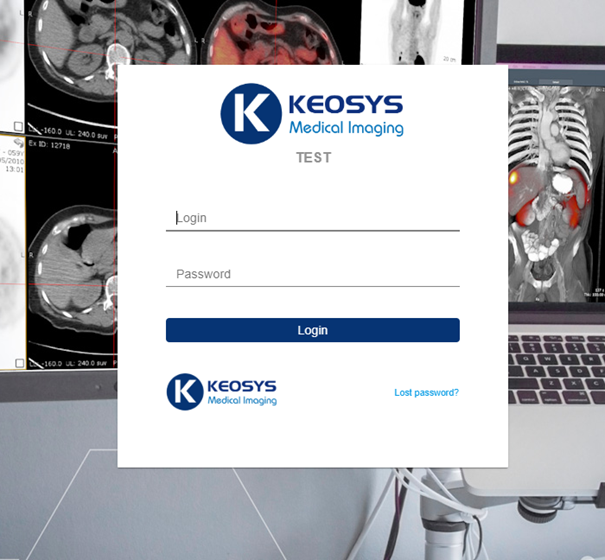
To download IMAGYS Connector, log in to the IMAGYS web platform with your credentials.
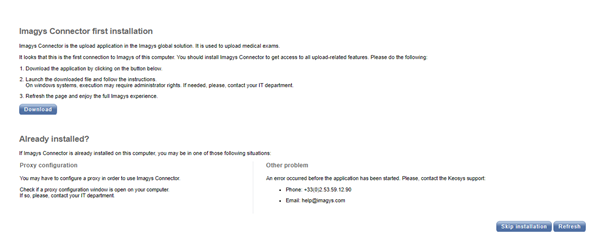
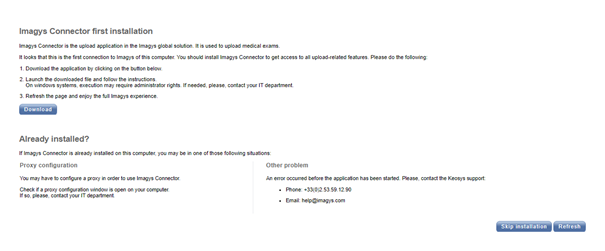
If IMAGYS Connector is not installed on your computer, the following notification window will appear after a few seconds. Click on "Download" and choose a destination folder to store the installer (you can use the Desktop, for example).
Step 2: Installing the software
Launch the installer (imagys-connector-distribution-X.X.XX-win-installer.exe) from the directory you stored it in, by double-clicking on it.
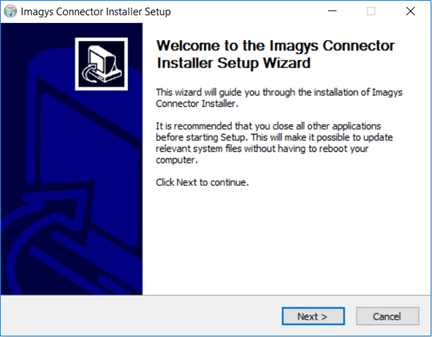
When the setup wizard opens, click on "Next" twice successively and then on "Install":
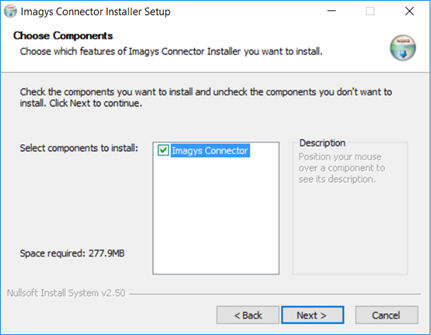
When choosing components, please verify that “IMAGYS Connector” is checked
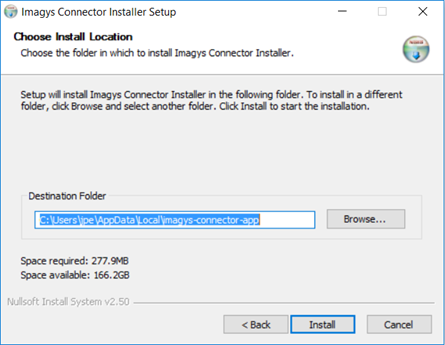
We recommend that you install IMAGYS Connector in the default folder. If you want to install it in another location, please check that you are allowed to.
Step 3: Launching IMAGYS Connector
Once IMAGYS Connector is successfully installed, return to IMAGYS and click on "Refresh".
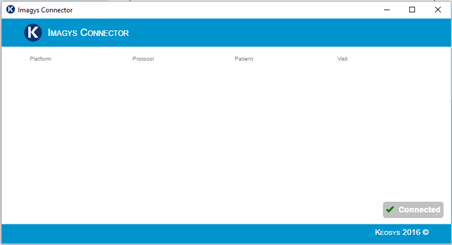
IMAGYS Connector will automatically start, and the login process will continue.
- If the installation notification window still appears after refreshing the page, restart your computer.
- If your web browser asks if IMAGYS Connector should be opened or not, allow it.
If you need assistance during the installation of IMAGYS Connector, please contact Keosys Technical Support team: How to contact us?