In the Imagys platform, when you click on the View button to visualize an exam, a file named viewer-config.ica is downloaded on your computer. You need the Citrix Workspace application to open this file and start the viewer.
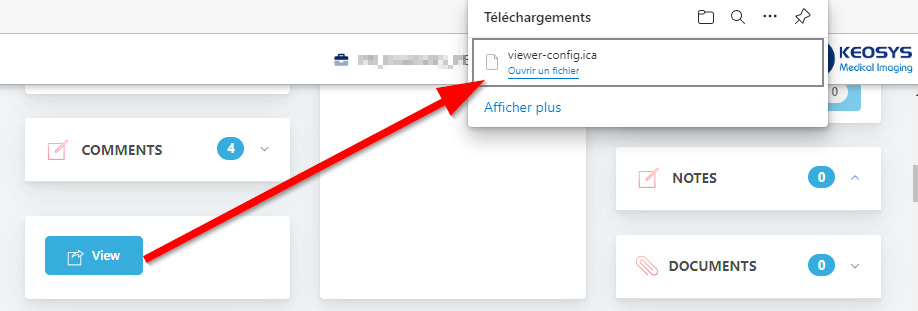
If you don't have the Citrix Workspace application on your computer, you can install it by following the procedure below.
Step 1: Downloading the Citrix Workspace software
The Citrix Workspace application can be downloaded from the Citrix website :
- For Windows computers : https://www.citrix.com/downloads/workspace-app/windows/workspace-app-for-windows-latest.html
- For Mac computers : https://www.citrix.com/downloads/workspace-app/mac/workspace-app-for-mac-latest.html
Step 2: Install the Citrix Workspace software
Launch the installer that you have downloaded by clicking on it (the file is called CitrixWorkspaceApp.exe for Windows for ex.) .
When the setup wizard opens, click on Start : 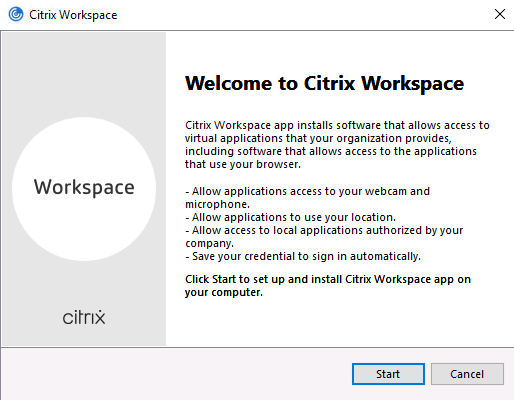
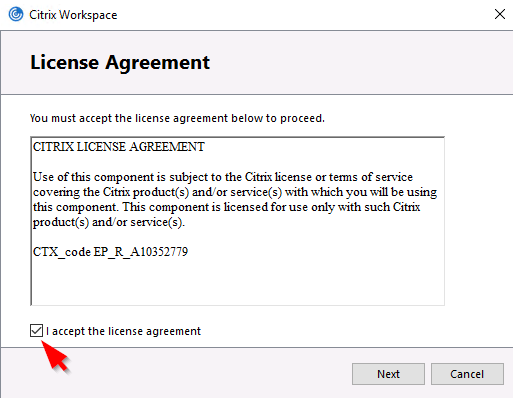
In the License Agreement page, select the "I accept the license agreement" checkbox and click Next :
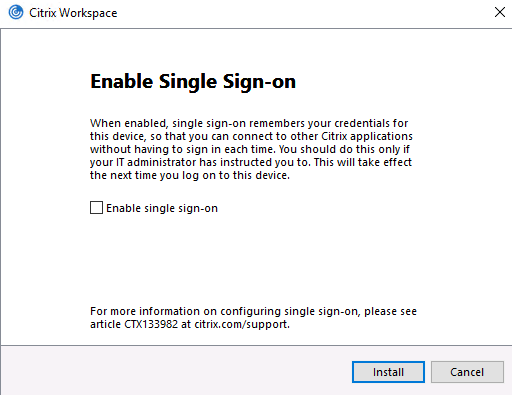
Leave the "Enable single sign-on" checkbox unchecked and click Install :
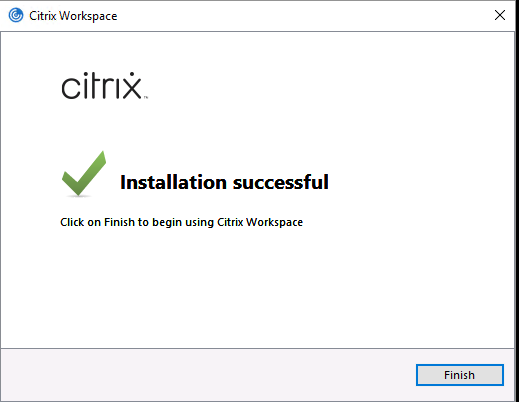
Click on Finish when the setup is completed (don't click on Add an account if you have the option) :
Step 3: Start the viewer
Click again on the View button in the Imagys platform to generate a new viewer-config.ica file.
Don't click on the previously donwloaded file as the session might have been expired.
If the file is not opened automatically, just click on it and the Viewer should start.